


How to Stop Your Phone Sharing Data With Apps and Ad Trackers
Every time you install an app, enable location services, or tap “accept,” you may be allowing companies to collect and share your personal data with ad trackers and third-party networks.
Some of this data sharing is legal. Some of it is buried in default settings most people never review. The good news is you can limit it.
This guide explains how to stop your phone from sharing data with apps and ad trackers, which settings actually matter, and what you can realistically control.
How Phones Share Data Without You Realizing
Around 80 percent of consumers say they are concerned about their digital privacy. Yet most data sharing does not happen through obvious pop-ups or dramatic warnings. It happens through default settings and background features that continue running unless you change them.
Here is where that data sharing usually happens:
Background App Refresh and System Processes
Apps can run in the background even when you are not using them. Background App Refresh allows them to sync content and send usage data to remote servers. Operating systems may also collect diagnostic data by default.
Location Tracking and Diagnostics
If location access is set to “Always,” apps can track movement in the background. Even limited access can build patterns over time. Phones may also send location-based diagnostics to improve services.
Push Notifications and Sync Services
Push notifications require constant server communication. Email, messaging, and cloud apps regularly sync in the background, generating metadata about device activity and usage.
Wi Fi and Bluetooth Scanning
Phones routinely scan for nearby Wi Fi networks and Bluetooth devices to improve connectivity and location accuracy. This scanning creates network and proximity data, even when you are not actively connected.
If you never adjust the defaults, your device will continue sharing more background data than you likely expect. That is how modern digital trust systems decide what to allow. Permissions and data flows are automated at scale, which means they continue running unless you step in and change them.
Quick Reality Check: Can You Ever Fully Stop It?
Short answer: no. You can reduce it, not eliminate it.
Most smartphones are designed to generate tracking data by default. That data can be combined across installed apps and other apps to build detailed user profiles tied to device identifiers. Even when your phone is idle on your bedside table at night, certain system processes may still run.
Here is what you can and cannot control.
- App-level tracking is optional: You can disable unnecessary permissions, turn off background refresh, restrict location access, and reset ad IDs to limit tracking. This reduces how apps build profiles from your search history, videos you watch, or usage patterns.
- System telemetry is built in: Your operating system collects diagnostics and security data to keep the device stable. Some settings can be limited, but not fully disabled without affecting core features.
- Carrier data happens outside your settings: Mobile providers log network connections and approximate location from cell towers. That data is transmitted regardless of app permissions.
- Essential data keeps the phone functional: Security updates, network routing, and account verification are required. Ad tracking and behavioral analytics are not.
The reality is simple. You cannot flip one switch and disappear from the system. But with awareness and targeted changes, you can significantly reduce how much data is collected and linked to your device.
How to Stop Your Phone Sharing Data: Step-by-Step
About 44 percent of reported data breaches involve personal information such as names and email addresses. The more unnecessary data your apps collect and store, the greater your exposure if one of those platforms is compromised.
The upside is that you do not need extra apps to reduce that risk. The controls are already built into your phone. You just have to change the defaults.
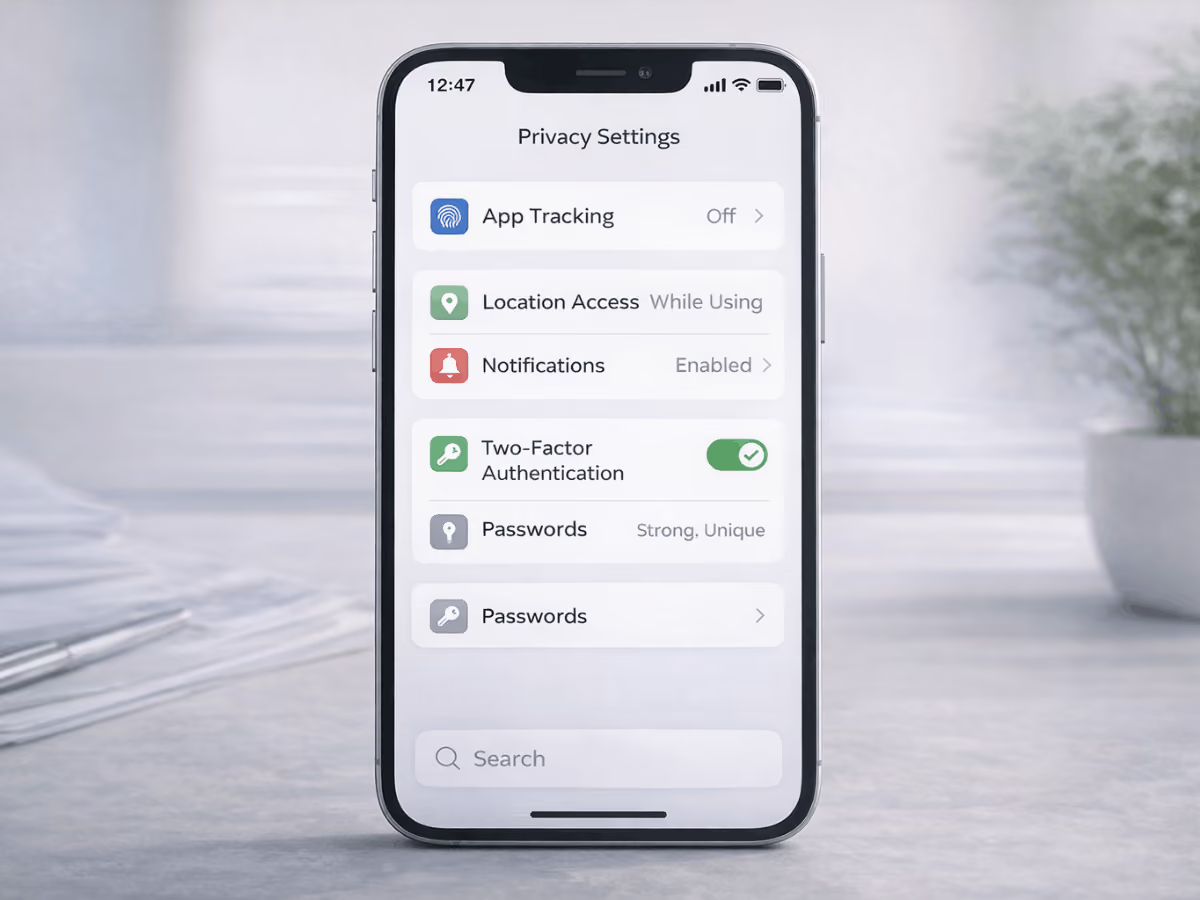
For iPhone Users
1. Limit Background App Refresh
Go to Settings > General > Background App Refresh. Turn it off completely or disable it for apps that do not need constant updates.
2. Restrict Location Access
Go to Settings > Privacy & Security > Location Services. Set non-essential apps to “While Using” or “Never.”
3. Manage Analytics and Diagnostics
Go to Settings > Privacy & Security > Analytics & Improvements. Turn off iPhone Analytics and app analytics sharing.
4. Disable App Tracking
Go to Settings > Privacy & Security > Tracking. Turn off “Allow Apps to Request to Track” to block cross-app ad tracking.
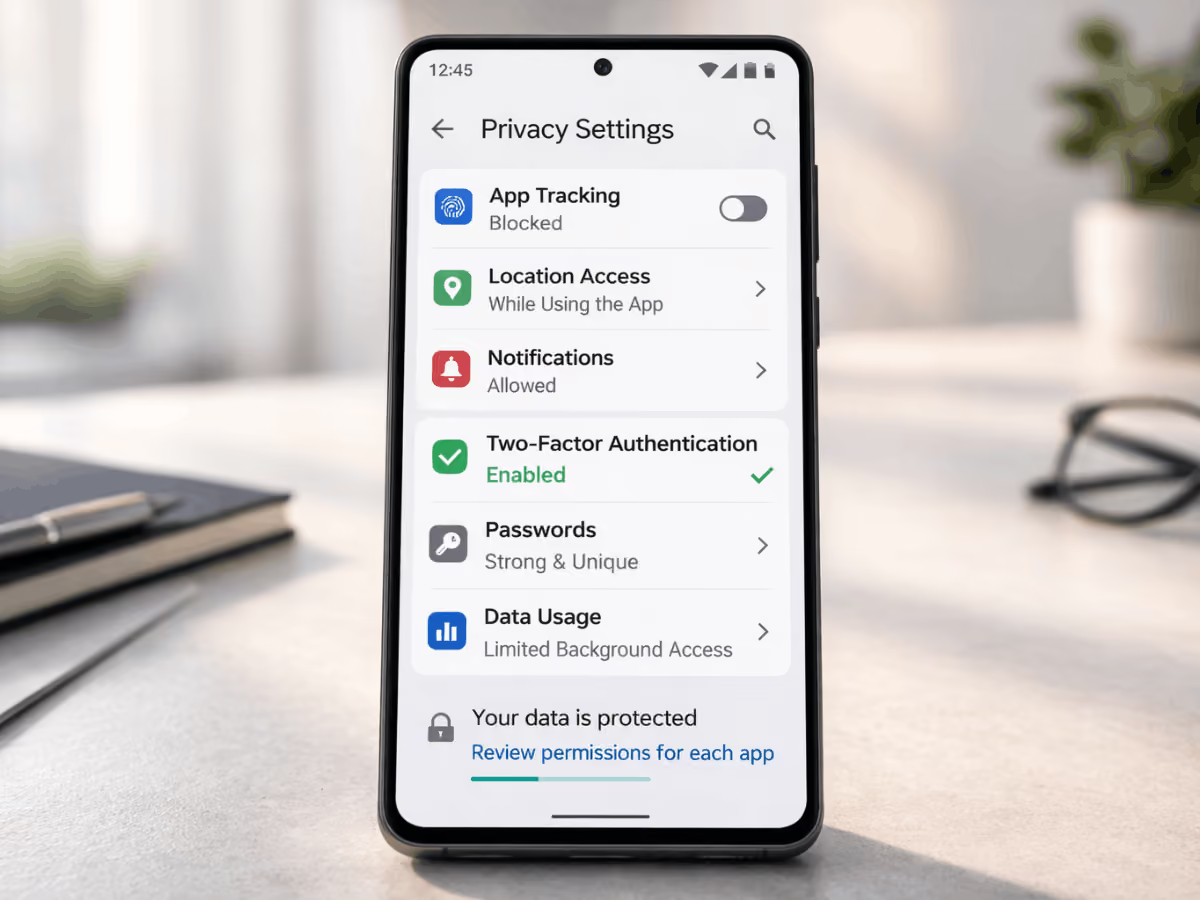
For Android Users
1. Restrict Background Data
Go to Settings > Apps > Select App > Mobile Data & Wi Fi. Disable background data for apps that do not need it.
2. Turn Off Location and Scanning
Go to Settings > Location. Limit app access and disable Wi Fi and Bluetooth scanning if not required.
3. Manage Google Activity Controls
Open your Google Account > Data & Privacy. Pause Web & App Activity and review Location History settings.
4. Review App Permissions
Go to Settings > Privacy > Permission Manager. Remove access to camera, microphone, contacts, or files for apps that do not need them.
These steps will not stop all data sharing, but they significantly reduce how much your phone shares with apps and ad trackers.
App-Level Privacy Controls That Make a Real Difference
Research has found that more than 77 percent of mobile apps transmit some form of sensitive data, often through embedded trackers or third-party analytics.
Generic advice is easy to ignore. These are the app categories that usually collect the most data and where small changes make a real difference.
Social Media Apps
Social platforms collect location, usage patterns, device IDs, conversation metadata, and behavioral signals to power ad targeting and ad topics.
What to check:
- Turn off precise location access
- Disable contact syncing unless essential
- Tap Privacy in the app settings and review ad preferences
- Limit off-platform tracking and data sharing with Meta or other ad networks
- Restrict camera and microphone access to “While Using”
On an iPhone or iPad, review tracking permissions under system settings. On an Android phone or other Android devices, check app permissions and reset advertising ids regularly.
Messaging Apps
Messaging apps collect more than message content. Even with encryption, metadata such as timestamps, device details, and contact interactions may still be logged.
What to check:
- Disable automatic contact syncing if optional
- Restrict background data if constant sync is not necessary
- Turn off read receipts or activity status
- Limit photo library access to selected items only
- Review cloud backups, especially if conversations are stored outside the app
Encryption protects message content, but backups and account data can still be transmitted to external servers.
Weather and Utility Apps
Weather apps often request constant location access. Utility apps collect analytics tied to usage patterns.
What to check:
- Set location to “While Using,” not “Always”
- Disable precise location if city-level forecasts are enough
- Review what specific types of data are shared with partners
- Delete apps that request more permissions than they need
If an app claims it needs 24/7 location just to show tomorrow’s date forecast, reconsider. Many monetize tracking data by sharing it with advertising partners or data brokers.
The biggest privacy leaks usually come from everyday apps you rarely question. Tightening controls in just these three categories can significantly reduce how much data your phone shares with advertisers and third-party networks.
Privacy Tools Worth Using
Privacy tools can reduce tracking, but they are not magic. Here is what is actually worth using and where the limits are.
- VPNs: Encrypt your internet traffic and hide your IP address from websites and public Wi Fi networks.
Limit: They do not stop apps from collecting data once you log in or provide personal information. - Privacy-Focused Browsers: Browsers like Brave or Firefox block many third-party trackers and limit cross-site tracking by default.
Limit: They only protect browsing activity, not tracking inside mobile apps. - Ad Blockers and Tracker Blockers: Block known advertising domains and tracking scripts, reducing behavioral profiling and targeted ads.
Limit: They cannot block all first-party data collection or operating system telemetry. - DNS-Level Filtering Tools: Route traffic through filtering servers that block known tracking domains at the network level.
Limit: Apps can still send data to their own servers.
What These Tools Cannot Replace
- They do not stop built-in operating system diagnostics.
- They do not erase data already collected.
- They do not override essential security or network communications.
Apps generate tracking data from everyday actions, which is why understanding how apps collect your data every time you tap is key. If you do not change your permissions and defaults, no tool can fully offset what your settings allow.
Take Control of What Your Phone Shares
Your phone shares data by default. That is how modern mobile ecosystems are designed to work. Changing those defaults makes a measurable difference. Limiting permissions, reducing background access, and disabling cross-app tracking significantly cut down how much consumer data leaves your device.
Privacy is not about paranoia or going offline. It is about understanding what your phone is doing and adjusting the defaults. Most meaningful changes happen in your settings.
compare phone plans and save up to 80%


.svg)
.svg)

compare your carrier and save up to 63%


.svg)

.svg)

