


Gmail Templates on Your Phone: How to Save and Reuse Basic Emails
You've just finished a client call and need to send a quick follow-up. The message is almost identical to one you wrote yesterday, but you're on your phone between appointments and don't want to type it all again.
This is where email templates become useful. Instead of rebuilding the same response, you keep a ready-made version and personalize the details that matter.
There's one catch: Gmail's built-in template feature isn't available in its iPhone or Android apps. You can create and insert templates using Gmail on a computer, but mobile users need a different approach.
Fortunately, you don't need complicated software to reuse everyday messages. A few saved drafts, keyboard shortcuts, or notes can make routine emails much easier to handle. And when you need something more polished than plain text, professionally designed basic email templates offer another way to prepare reusable messages.
Here's how to set up a practical system that works at your desk and on your phone.
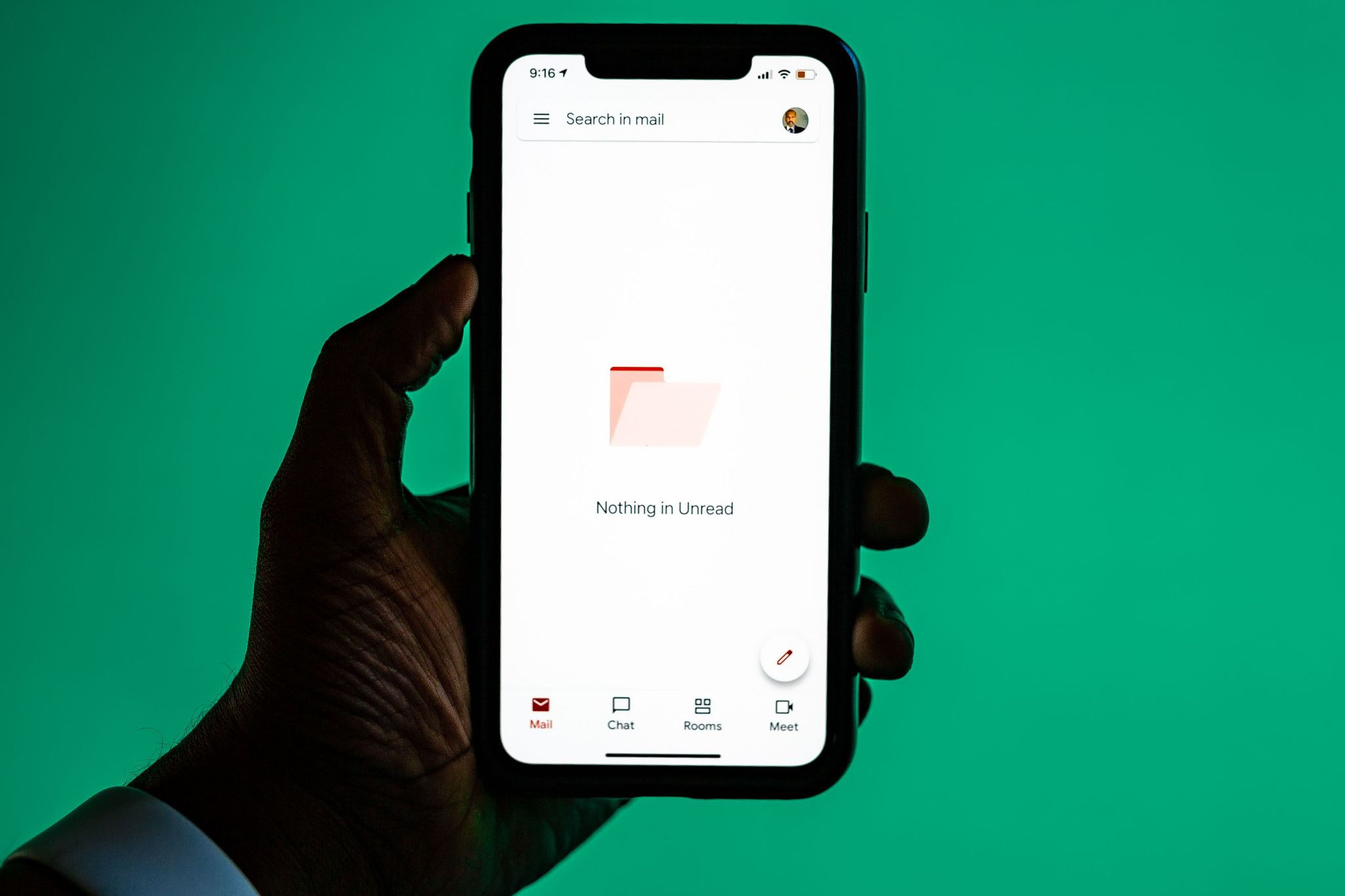
Can You Use Gmail Templates on Your Phone?
Short answer: not directly in the Gmail app.
Google offers a built-in feature called Gmail templates that lets you save frequently used messages and insert them into new emails. It's particularly helpful for recurring replies, meeting arrangements, and customer communications.
However, Google's official documentation confirms that templates are available only in Gmail on the web. The Gmail apps for iOS and Android don't provide a native option to insert saved templates.
That distinction matters because many tutorials suggest finding a Templates menu inside the mobile compose window. If you've looked everywhere and can't find it, you're not missing a hidden setting. The feature simply isn't supported there.
You still have several practical options:
- Open Gmail in a mobile browser and try the desktop site.
- Use keyboard text replacement to expand short commands into longer messages.
- Save reusable text in drafts or a notes app.
- Prepare templates on a computer and keep accessible copies for mobile use.
Each approach serves a slightly different purpose. The best choice depends on how often you send the message and how much formatting it requires.
How to Create a Template in Gmail on a Computer
If you're wondering how to create a template in Gmail, start by enabling the feature. Google keeps it under Advanced settings rather than the standard compose options.
Step 1: Enable Gmail Templates
- Open Gmail in your computer's browser.
- Select the gear icon in the upper-right corner.
- Click See all settings.
- Open the Advanced tab.
- Find Templates and select Enable.
- Scroll to the bottom and click Save Changes.
Gmail will reload with templates enabled.
You only need to complete this setup once per account, unless you change the setting later.
Step 2: Write and Save Your First Template
Now you're ready to create a reusable message.
- Click Compose.
- Write the email content you want to reuse.
- Keep recipient-specific details as placeholders, such as [Name], [Date], or [Project].
- Click the three-dot More options menu at the bottom of the compose window.
- Select Templates → Save draft as template → Save as new template.
- Give the template a recognizable name and save it.
For example, you might call your first template "Client Follow-Up" instead of "Email 1." A descriptive name makes it easier to find later.
Step 3: Insert or Update a Saved Template
To reuse it, start a new email, open the same three-dot menu, select Templates, and choose the message under Insert template.
Gmail inserts the saved content into your draft. Then update the greeting, dates, details, and call to action before sending.
Need to change the original? Edit the message and return to Templates → Save draft as template. Choose the appropriate existing template under Overwrite Template, then save.
That's the standard way to save email templates in Gmail. It works well on a computer, but saved templates don't appear as selectable items in the Gmail mobile app.
Four Ways to Reuse Email Templates on a Phone
The real challenge with Gmail templates mobile workflows is finding a method that saves time without making simple emails harder to send.
Here are four approaches worth considering.
1. Try Gmail in Your Mobile Browser's Desktop Mode
If you need access to the desktop interface while away from your computer, you can try opening Gmail through your phone's browser.
On an iPhone, open Safari, visit Gmail, and choose Request Desktop Website from the browser's page options.
On Android, open Chrome, visit Gmail, and select Desktop site from the browser menu.
Sign in if prompted, then check whether the full Gmail desktop interface is accessible.
This method comes with an important limitation: requesting a desktop site doesn't guarantee that Gmail will display its complete desktop interface or support template insertion. Gmail may redirect to a mobile layout, and some controls can be awkward or inaccessible on a small screen.
If the Templates menu isn't available, don't spend too much time troubleshooting. A saved note or keyboard shortcut will usually be more dependable.
Desktop mode is worth testing for occasional use, not something to build an entire mobile email workflow around.
2. Use Text Replacement on iPhone
For short, repetitive messages, Apple's built-in Text Replacement feature is one of the simplest options.
Instead of typing a full response, you enter a short combination of characters. Your iPhone then offers or inserts the longer phrase you've saved.
To set it up:
- Open Settings on your iPhone.
- Go to General → Keyboard → Text Replacement.
- Tap the + button.
- Enter your reusable message in the Phrase field.
- Add a memorable abbreviation in the Shortcut field.
- Tap Save.
For example, you could save:
Shortcut: ;meetconfirm
Phrase: "Hi [Name], confirming our meeting on [Date] at [Time]. Looking forward to speaking with you."
The next time you're composing an email, type the shortcut and use the suggested replacement.
Choose an abbreviation you wouldn't normally type in conversation. Otherwise, the keyboard might suggest your business response when you're writing something completely unrelated.
Text Replacement is best for greetings, short confirmations, and frequently repeated sentences. Store longer messages with complex formatting elsewhere.
3. Create Text Shortcuts With Gboard on Android
Android users can explore a similar approach with Gboard, Google's keyboard.
Depending on your Gboard version, device, and language settings, you may be able to create personal dictionary entries with shortcuts.
Start by opening a text field and accessing Gboard's settings. Look for Dictionary → Personal dictionary, choose your language, and add a phrase with a shorter shortcut.
For instance:
Shortcut: ;followup
Phrase: "Hi [Name], thanks for your time today. I'm following up on our conversation about [Topic]. Please let me know if you'd like to discuss the next steps."
When you type the shortcut, Gboard may suggest the saved phrase.
Unlike iPhone Text Replacement, Gboard's behavior can vary. Not every device or keyboard version expands long text the same way, and you may need to select the full message from suggestions.
Test the shortcut in a draft before relying on it for a customer response.
For longer emails, storing the content in a note is often more practical than using the keyboard dictionary.
4. Keep Templates in Gmail Drafts or a Notes App
This is arguably the easiest option for anyone who switches regularly between a laptop and a phone.
Create a draft with the reusable message, then leave it unsent. Gmail usually syncs drafts across devices when you use the same account.
On your phone, open the Drafts folder, find the message, and copy the text into a new email.
There's one important precaution: editing or sending the original draft can change or remove your reusable copy. Always duplicate the content into a fresh message rather than treating the original draft as a permanent template.
For a more organized system, keep reusable emails in a notes app.
Create a note called "Email Templates" with sections for follow-ups, meeting confirmations, customer support, and payment reminders.
A note offers several advantages. You can search by name, keep multiple variations together, and copy text without accidentally sending the original. If the notes service syncs across your devices, you can also update your templates from your computer.
Just avoid storing sensitive customer information, passwords, or confidential account details inside reusable notes.
Which Emails Are Worth Turning Into Templates?
Not every email needs a template. A highly personal message or a complex negotiation deserves a fresh response.
The best candidates are emails where the structure stays consistent, but a few details change.
Follow-Up Emails
Follow-ups are a natural starting point because the underlying purpose is usually the same: reconnect, summarize, and suggest the next action.
Subject: Following Up on [Topic]
Hi [Name],
Thanks for speaking with me about [Topic]. I wished to follow up on the next steps we discussed.
Would [Proposed Date] work for a quick conversation?
Best,
[Your Name]
This structure is useful after discovery calls, introductions, or project discussions. Adjust the context so the recipient knows you're referring to their actual conversation.
Meeting Confirmations
A confirmation should remove uncertainty, not create another email thread.
Subject: Meeting Confirmed: [Date]
Hi [Name],
Just confirming our meeting on [Date] at [Time and Time Zone].
We'll discuss [Main Topic]. Here's the meeting link: [Link].
Looking forward to it.
Best,
[Your Name]
Always check the time zone and meeting link before sending, particularly when working with people in different locations.
Answers to Common Questions
Customer-facing teams often receive the same questions about timelines, features, availability, or processes.
A reusable response might explain the standard procedure and leave space for case-specific information.
Subject: Re: Your Question About [Topic]
Hi [Name],
Thanks for reaching out.
Here's how [Process] works: [Brief Explanation].
You can find the relevant details here: [Resource Link].
If anything remains unclear, reply with your question and I'll be happy to help.
Best,
[Your Name]
Avoid making the response sound automated when the customer has shared a specific concern. A sentence acknowledging their situation can make a significant difference.
Payment Requests
Payment-related messages benefit from consistent, professional wording.
Subject: Payment Reminder: Invoice [Number]
Hi [Name],
I hope you're doing well.
I'm following up on invoice [Number] for [Amount], which is due on [Due Date].
Please let me know if you need another copy or have any questions.
Thank you,
[Your Name]
Before sending, verify the invoice, amount, and due date against your records. Never rely on old payment details copied from a previous email. Payment instructions should come from a verified source.
How to Write a Good Basic Email Template
A template should save writing time without making your messages feel generic.
Start with a clear subject line. "Checking In" works for an informal conversation, but "Next Steps for [Project]" tells the recipient more.
Next, use visible placeholders. Square brackets make unfinished details easier to spot: [Name], [Company], [Meeting Date], and [Link].
Keep the body short enough to scan comfortably on a phone. Most routine business emails need only a greeting, one or two sentences of context, a clear request, and a closing.
Give the reader one primary action. Asking someone to book a call, review a proposal, complete a survey, and share feedback in the same short email creates unnecessary friction.
Finally, personalize the information that genuinely matters. A saved template is the starting point, not the final message.
You can also create versions for different audiences. A follow-up to a long-term customer should probably sound different from one sent to a new prospect.
And when using shared or synced notes, limit access to people who actually need the templates.
When Plain Text Isn't Enough
Text shortcuts and saved drafts are ideal for everyday correspondence. But they aren't designed for emails that depend on visual structure.
Consider a monthly newsletter, product promotion, event announcement, or branded customer update. These messages may need images, consistent typography, buttons, and layouts that display properly on different screen sizes.
Reproducing that design with a mobile keyboard shortcut is impractical. Copying complex HTML into a standard Gmail draft can also cause formatting issues.
For those situations, prepare a designed email template in a dedicated editor, test how it looks on mobile devices, and use an appropriate sending workflow.
The distinction is straightforward: use text-based templates for personal, one-to-one communication, and designed layouts for campaigns where presentation matters.
A promotional email should also include the necessary sender identification and unsubscribe options wherever applicable. A visually attractive layout doesn't replace those responsibilities.
Common Email Template Mistakes to Avoid
Templates save time, but they also make it easy to repeat the same mistake across multiple messages.
Forgetting to Replace Placeholders
Sending "Hi [Name]" is an obvious giveaway that you didn't review the message. Search for opening and closing square brackets before pressing Send.
For important emails, read the entire message once instead of just checking the greeting.
Reusing Outdated Information
Old links, expired offers, and incorrect meeting details are surprisingly easy to overlook.
Review frequently used templates whenever a process, price, schedule, or policy changes. If you maintain templates in several places, update every relevant copy.
Missing or Duplicating a Signature
Gmail can automatically add a signature, depending on your settings and device. If your template already includes one, you may end up with duplicate contact information.
Check how signatures behave in your desktop browser and mobile app. Then decide whether the signature belongs in the template or should be added automatically.
Making Every Reply Sound Identical
Templates should remove repetitive typing, not erase your personality.
A short sentence mentioning the recipient's project, question, or previous conversation can make a reusable email feel genuinely relevant.
Saving Sensitive Details
Avoid putting bank information, private customer records, authentication codes, or other sensitive details into general-purpose templates.
Be particularly careful with payment requests. Verify the recipient and payment information separately before sending.
If you're reviewing your broader phone-security habits, REALLY's guide to phone privacy settings that expose more than you think is a useful companion read.
Make Your Mobile Email Workflow More Efficient
The most effective system is usually a small one.
Start with three or four messages you send repeatedly. Save the short versions as keyboard shortcuts and the longer versions in a dedicated note. If you work at a computer, enable Gmail's native templates for the messages you regularly send from there.
Use descriptive names and keep a simple structure. For example, "Follow-Up — New Client" and "Follow-Up — Existing Customer" are easier to distinguish than multiple drafts titled "Follow-Up."
It's also worth reviewing your browser and account settings when working across devices. REALLY's article on improving browser privacy settings covers practical precautions, while the guide to email and text scam red flags explains why unfamiliar links and payment-related messages deserve extra attention.
If your work involves branded email campaigns, a dedicated editor such as Stripo.email can help you prepare reusable designs. For ordinary replies, though, a well-organized note or keyboard shortcut will often do the job.
The goal isn't to automate every conversation. It's to stop spending time rewriting information that hasn't changed.
Final Thoughts
You can't currently insert native Gmail templates from the iOS or Android app, but that doesn't mean you have to compose every message from scratch.
Gmail's desktop feature is useful when you're working from a computer. On your phone, text replacement, Gboard shortcuts, reusable drafts, and organized notes provide practical alternatives.
Start with the emails you send most often: confirmations, follow-ups, common answers, and payment reminders. Keep each template concise, use obvious placeholders, and check the details before sending.
A good template should make communication faster without making it less personal. If it saves you a few minutes and helps you send a clearer message, it's doing exactly what it should.
compare phone plans and save up to 80%


compare your carrier and save up to 63%


