


Simple Ways to Check Suspicious Network Connections for Security Risks
Simple Ways to Check Suspicious Network Connections for Security Risks
A slow connection or an unknown device on your network may seem like a small problem. Sometimes it is. Other times, it's the first indication that someone else is using your network.
The Internet Crime Complaint Center (IC3) of the FBI shows how common online crime has become. In its 2025 Internet Crime Report, IC3 logged 1,008,597 complaints and $20.877 billion in reported losses, up 26% from 2024. That equates to nearly 3,000 complaints per day.
With that said, this article explains 5 simple ways to check suspicious network connections. And what to do if something looks wrong.
Why A Quick Check Matters
The top two complaint types in the IC3 report were phishing and spoofing, accounting for 191,561 complaints.
Attackers use many routes. An unnoticed connection on your network is one of them. A quick check can help you detect it early.
Many people also assume their network is too small to interest an attacker. But the US Cybersecurity and Infrastructure Security Agency lists this very belief as a common misconception in its home network security guidance.
A weak password or an unpatched device can be enough for an intruder. The good news is that a simple check takes little time.
The first steps to do so do not require any special software. Just connect to your router via your computer and perform an IP lookup. Each check builds on the one before it.
What Counts as a Suspicious Connection?
A connection is suspicious if it is not what you are expecting. There are three kinds that deserve immediate attention.
The first is an unknown device on your Wi-Fi. The second is an unknown external address that your computer contacts. And the third is a sudden change in speed or data usage.
Each of the 5 checks below targets one of these. The objective is to distinguish between normal traffic and traffic that needs an answer.
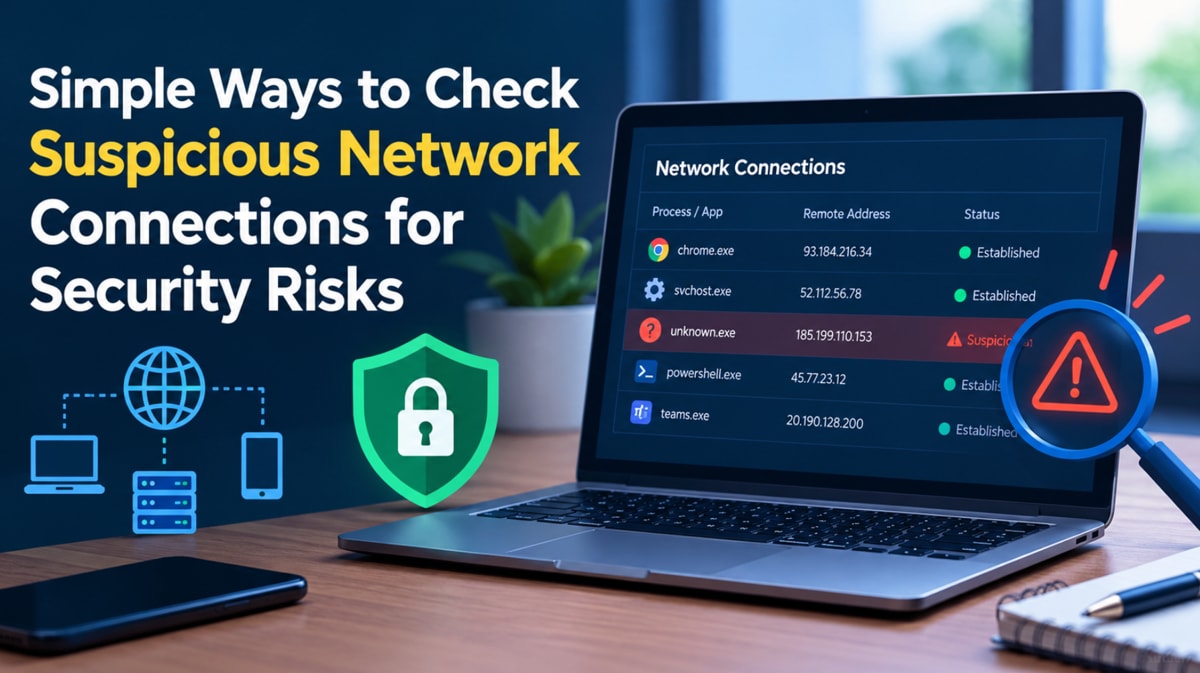
Five Simple Ways To Check Your Connections
Here’s how you can be safe.
- Review the Device List On Your Router
Your router keeps a list of all the devices on your network. It's a quick place to spot a stranger.
CISA suggests that you keep an eye on connected devices and get rid of any you don't know. So, follow these steps:
- Log in to your router’s admin page. Usually, the address and login are printed on the back of your router.
- Open the connected devices or client list.
- Match each entry with a device you have. Such as a phone, laptop, TV or smart speaker.
- If you can't identify a device, remove or block it. Bonus points if you change your Wi-Fi password.
Do note that the names of devices are not always descriptive. If a name means nothing to you, turn off one of your own devices and see which entry disappears.
- Check Active Connections On Your Computer
Your computer can display the list of external addresses that it is communicating with at the moment.
Close your browser and apps first, so the list stays short. Then take these steps:
- On Windows, open Command Prompt and run netstat -ano.
- On Mac, open Terminal and run lsof -i.
- Look at the remote or foreign addresses. Ignore local ones, such as 127.0.0.1 or addresses that start with 192.168.
- If you see any public IP address that you don't recognize, along with the program that uses it, note it down.
Most of these will be normal connections. They are generated by cloud services, update servers, and websites. A connection is only suspicious if there is no program that you know of that explains it. The clue is the process ID or program name listed next to each connection. So look that up before you act.
- Look Up Any Unknown IP Address
Once you have an unfamiliar IP, look it up.
An IP lookup tool shows who owns an address and where it sits. Enter the IP, and a good tool will return the country, ISP, ASN, organization, and threat level.
Many lookup services also accept a domain name, which helps when a program connects to a hostname instead of a number.
Then what you can do is read the results against what you expect. An IP address that is associated with a known cloud provider or the company that owns an app you use is typically safe.
Compare the IP lookup results with the application using the connection. An unfamiliar organization or country may warrant investigation, but it doesn't prove malicious activity. Check the destination domain, process name, connection behavior, and other available evidence before taking action.
Do keep one limit in mind while using this tool, though. It only provides location up to the city level and cannot identify a street or a person.
- Check The Reputation Of The IP
A location tells you where an IP sits. Reputation tells you whether others have flagged it.
The IP reputation checker compares an address against 29 public blacklist services. It provides a fraud score out of 100, a risk level between low, medium, or high, and the number of blacklist detections.
Use the score as a cue. A high score with several blacklist hits means you should act. A medium score with a single listing can be a reason to keep an eye on that connection. And lastly, a low score is good, but it does not clear a program that still behaves oddly.
Also remember that large services are shared by thousands of customers and have the same IP address. A flag on a shared address doesn’t necessarily mean that your own device is at risk.
- Watch For Changes In Speed and Data Use
Some issues appear as symptoms before they are discovered by any tool. So always watch for the following signs.
- Your internet slows down even when only a few devices are connected to it.
- Your data use spikes for no apparent reason.
- A new device appears on the router list.
- You receive login alerts or password reset emails that you did not request.
You can check your usage in your router or internet speed test app (Android, IOS) and compare it to your usual figures.
That said, a single warning sign can have an ordinary cause. But two or three together call for the checks above.
What To Do If Something Looks Wrong
Work through these steps in order:
- Disconnect the unknown device or the computer that is affected from the network.
- Change your router admin password as well as your Wi-Fi one.
- Update the router firmware and the software used to control it on your computer.
- Check the router logs for any unusual activity. In August 2025, CISA, NSA, FBI and DC3 issued a joint advisory recommending regular log reviews.
- Change the passwords of your important accounts from a trusted device.
- Report fraud or financial loss to the FBI at ic3.gov.
Final Thoughts
Checking network connections should be a habit.
Review your router list, look at your active connections, and look up anything unfamiliar.
Most results will turn out to be ordinary. But the few that are not are the ones worth catching early.
Repeat the check once a month after you add a new device, like a smart TV or a camera. Maintain a simple log of date, IP address and result. Over time, the log shows what normal looks like for your network.
So start this week. Open your router’s connected device list, match every entry to a device you own, and look up unknown IP addresses.
compare phone plans and save up to 80%


compare your carrier and save up to 63%


